
Barcodes are scanned over 10 billion times daily worldwide. In retail, warehouses, logistics, and manufacturing, barcode scanners read codes and send the data to your POS, ERP, or inventory system, which matches it to product information.
So, how do you use a barcode scanner correctly?
Whether you are opening a new store, setting up warehouse inventory, or improving an existing POS workflow, this guide will help you understand:

- ✔ How barcode scanners work and where scanned data goes
- ✔ Common barcode scanner types and their applications
- ✔ How to connect and use a handheld barcode scanner
- ✔ How to configure Enter, Tab, prefix, suffix, and other common settings
- ✔ Best practices for faster and more accurate barcode scanning
- ✔ Common barcode scanner problems and troubleshooting resources
Quick Answer: How to Use a Barcode Scanner
For most barcode scanners, the basic process is simple:
-
1
Connect or pair the scanner with your computer, POS terminal, tablet, or inventory device.
-
2
Open the correct input field, such as a POS search box, inventory SKU field, spreadsheet cell, or text editor.
-
3
Aim the scanner at the barcode and keep the code within the scanning range.
-
4
Press the trigger or present the barcode to an auto-sensing scanner.
-
5
Check the output to confirm that the barcode data appears correctly.
If the scanner beeps but nothing appears on screen, first check whether your cursor is in the right field. In keyboard-style input modes, the scanned data is entered where the cursor is active.
What Does a Barcode Scanner Do, and Where Does the Data Go?
A barcode scanner is an input device. It reads the visual pattern of a barcode, decodes it into numbers or characters, and sends that data to a connected device or system.
That system may be a computer, POS terminal, tablet, PDA scanner, industrial control system, inventory platform, WMS, or ERP software.
In many setups, the scanner uses HID keyboard mode, also called keyboard wedge mode. This allows the scanner to behave like a keyboard: scanned data is sent to the active input field wherever the cursor is placed, such as Notepad, Excel, a web form, or a POS input field.
Here’s how scanned data is typically processed depending on where the cursor is active:
| Where the cursor is active | What happens after scanning |
|---|---|
| Notepad or text editor | The barcode number appears as plain text |
| Excel or Google Sheets | The barcode data enters the selected cell |
| POS search field | The POS looks for a matching product or SKU |
| Inventory receiving field | The system records or searches the scanned item |
This is a key point: the scanner reads and sends data, but your software decides what that data means. If a barcode number appears in Notepad but not in your POS system, the scanner is probably working correctly. The issue may be the POS input field, SKU database, product mapping, or software settings.
Common Types of Barcode Scanners and Their Applications

Barcode scanners come in various types—wired or wireless, handheld or fixed. Choosing the right barcode scanner can help improve work speed and efficiency.
Below is a quick overview of the most common barcode scanner types, their connection options, main advantages, and typical uses.
| Scanner Type | Common Interfaces | Advantages | Best For | Typical Use |
|---|---|---|---|---|
| Handheld Barcode Scanner | USB, Bluetooth, Serial (RS232) | Highly portable, flexible for multiple workflows, supports 1D and 2D codes | Retail, office, light warehouse use, healthcare | Staff hold the scanner to scan products, labels, tickets, or packages |
| 2D Tabletop Scanner | USB, Serial (RS232) | Hands-free scanning, fast 2D code capture, ideal for counters | Checkout counters, libraries, reception desks, self-service stations | Barcodes are presented to a desktop scanner for hands-free scanning |
| PDA Barcode Scanner | Wi-Fi, Bluetooth, USB, mobile network | Mobile data management, integrated display and apps, supports wireless workflows | Warehouse, logistics, inventory management, field operations, healthcare | Users scan, view, edit, and upload product, stock, or patient-related data on one mobile device |
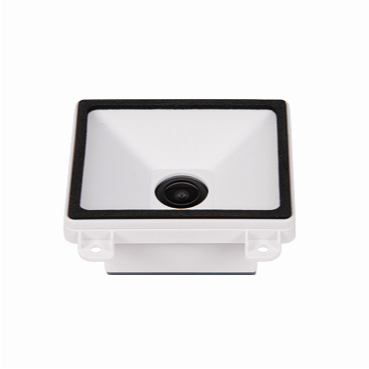
| Embedded Barcode Scanner | USB, Serial (RS232), TTL | Integrated into equipment, supports automated scanning, durable for industrial use | Kiosks, vending machines, access control, industrial automation | Scanning modules are built into devices or automated systems for hands-free operation |
Note: Handheld barcode scanners can be further divided into 1D and 2D types. For a deeper understanding, see 1D vs 2D Barcode Scanners: How to Choose.
How to Use a Handheld Barcode Scanner
While the basic scanning principle is similar across all scanner types, setup and usage can vary by device.
Handheld barcode scanners are the most widely used in retail, warehousing, healthcare, logistics, and office environments.
Below, we use an HPRT handheld barcode scanner as an example. You'll learn how to connect the device, scan your first barcode, and adjust common settings—in just a few minutes.
1. How to Connect a Handheld Barcode Scanner
How to Set Up a USB Barcode Scanner
USB is the most common connection for wired handheld barcode scanners. It is simple, stable, and usually plug-and-play. Best for desktop computers, POS terminals, and fixed counters.
- 1. Scan the factory reset setup barcode first.
- 2. Scan the USB HID / USB virtual keyboard setup barcode in the user manual.
- 3. Connect the scanner to your computer or POS terminal through the USB cable.
- 4. Open Notepad, Excel, or a POS input field.
- 5. Scan a test barcode and check whether the barcode data appears on the screen.
In USB HID mode, the scanner works like a keyboard. The scanned data will be entered wherever the cursor is active.

How to Set Up a Bluetooth Barcode Scanner
Bluetooth handheld barcode scanners are useful when users need more mobility. They are commonly used with tablets, smartphones, laptops, mobile POS systems, stockrooms, libraries, and small warehouses.
- 1. Scan the factory reset setup barcode.
- 2. Scan the Bluetooth mode setup barcode in the user manual.
- 3. Find the Bluetooth MAC address or Bluetooth name on the label under the scanner.
- 4. Open Bluetooth settings on your computer, tablet, or mobile device.
- 5. Select the matching scanner name from the Bluetooth device list.
- 6. Open Notepad, Excel, or your POS input field.
- 7. Scan a test barcode and confirm that the data is entered correctly.
Bluetooth scanners are often used in HID mode, so the scanned data can be sent directly to the active input field, similar to keyboard input.

2. How to Scan a Barcode Correctly and Efficiently
Once your handheld scanner is connected, you can start scanning barcodes. Most scanners support multiple scanning modes; selecting the right mode improves both speed and accuracy.
Trigger Mode
Trigger mode is the most common way to scan. Simply aim the scanner at the barcode and press the trigger. This gives the user full control over each scan, making it suitable for retail checkouts, inventory counts, healthcare tasks, and office workflows.
Auto-Sensing Mode
In auto-sensing mode, the scanner automatically reads any barcode that enters its detection zone—no trigger press needed. This mode speeds up high-frequency scanning and supports hands-free workflows at reception desks, libraries, ticketing stations, or service counters.
Continuous Mode
Continuous mode keeps the scanner’s illumination and scanning engine active, allowing barcodes to be read without pressing the trigger. It’s ideal when scanning large volumes of items continuously, reducing trigger fatigue.
A common example is using a handheld warehouse barcode scanner in continuous mode to process inventory labels and shipping labels during warehouse receiving, order picking, or stocktaking.
Tips for Accurate Scanning
Good scanning depends on more than pressing the trigger. Barcode quality, scan angle, distance, and lighting all influence success. Follow these practical guidelines:
- ✔ Keep the entire barcode within the scanning area.
- ✔ Hold the scanner at the recommended distance.
- ✔ Avoid extreme angles when scanning.
- ✔ Ensure the barcode is not wrinkled, damaged, smudged, or partially obscured.
- ✔ Reduce glare when scanning glossy labels or digital screens.
- ✔ Clean the scanner window regularly if scans become inconsistent.
Note: For 1D barcodes, the scanner must read across the full width. For 2D codes (QR, Data Matrix), the full symbol area must be visible.
3. How to Configure Common Barcode Scanner Settings?
After connecting and testing your handheld barcode scanner, you may need to adjust settings to optimize performance for your workflow.
Most scanners allow you to configure scanning modes, output behavior, and symbology recognition. On most devices, these settings are configured by scanning setup barcodes provided in the user manual, making changes quick and software-free. Here’s an overview of common settings and their practical uses.
Barcode Symbology Settings
Configure your scanner to read only the barcode types you need. This reduces misreads and speeds up scanning.
- 1D codes: UPC, EAN, Code 39, Code 128
- 2D codes: QR Code, Data Matrix, PDF417
Example: Disable QR scanning in retail checkout to avoid accidental scans; enable only 2D codes for event ticket scanning. Use the setup barcodes in the scanner manual to enable or disable specific symbologies.
Enter, Tab, Prefix, and Suffix Settings
These settings control what happens after the barcode data is scanned.
An Enter suffix can automatically submit the scanned code in a POS system or move to the next row in Excel. This is especially useful for small businesses that rely on Excel for stocktaking, where staff can scan items continuously without manually moving to the next row after each scan.
A Tab suffix can move the cursor to the next field in Excel, web forms, or inventory software. A prefix or suffix can add fixed characters before or after the scanned data.
| Setting | Output Example | Common Use |
|---|---|---|
| No prefix/suffix | 123456 | Basic barcode input |
| Prefix SKU- | SKU-123456 | Product code formatting |
| Suffix -WH1 | 123456-WH1 | Warehouse location marking |
| Enter after scan | 123456 + Enter | Submit a POS search or move to next line |
| Tab after scan | 123456 + Tab | Move to the next field in a form |
These functions are useful when barcode data must match the format required by a POS system, ERP platform, WMS, spreadsheet, or custom database.
Recommended Reading: How to Use a Barcode Scanner in Excel for Streamlined Data Entry
Offline Storage Mode
Offline storage mode, also called batch scanning, allows the scanner to save barcode data internally when it is not connected to a host device.
This is useful for warehouse stocktaking, inventory counting, delivery checks, field work, or any task where Wi-Fi, Bluetooth, or a computer connection may not be available. Users can scan items first, then upload the stored barcode data after reconnecting the scanner.
This mode is especially helpful when staff need to move through shelves, aisles, trucks, or storage areas without staying near a computer.
Uppercase and Lowercase Conversion
Some scanners can automatically convert scanned letters to uppercase or lowercase before sending the data to your system.
This helps keep data formats consistent across SKU codes, serial numbers, asset tags, employee IDs, or database records. For example, if your ERP requires product codes in uppercase, the scanner can convert abc123 into ABC123 before input.
Consistent letter case reduces manual correction and helps avoid mismatched records in POS, ERP, WMS, or inventory systems.
Common Barcode Scanner Problems
Most barcode scanner issues can be solved quickly by checking the connection mode, scanning settings, barcode quality, or software configuration.
- Scanner beeps but no data appears
- Scanner cannot read a barcode
- Scanned data appears in the wrong format
- Bluetooth connection fails
- Incorrect barcode type is enabled
- Barcode scanner is not working in POS software
Barcode Scanning Solutions for Retail, Logistics, Warehousing, Healthcare and Manufacturing
Fast, accurate scanning can change how daily operations run. HPRT offers a complete range of barcode scanning solutions designed for different business environments, combining fast decoding, reliable performance, and flexible connectivity options.
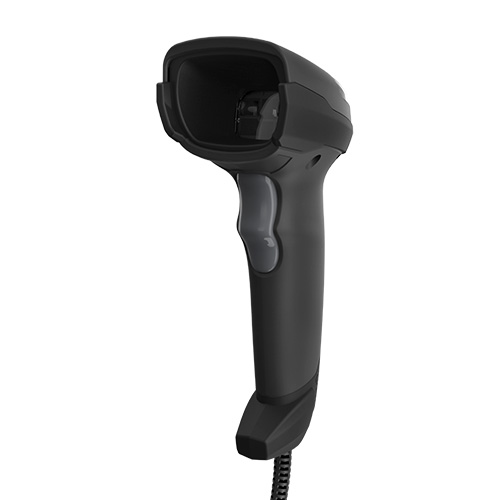
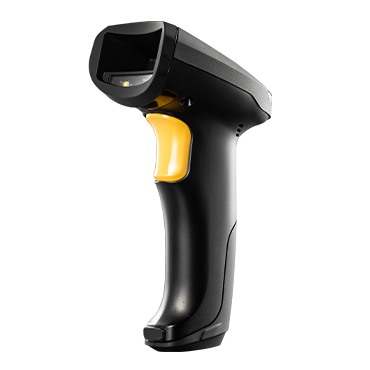
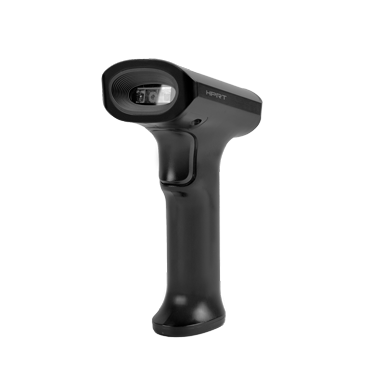
Handheld Barcode Scanners
Built for flexible, reliable daily scanning—wired and wireless options available.
- ● Fast 1D/2D barcode reading
- ● USB, Bluetooth, and RS232 connection options
- ● Suitable for POS checkout, inventory counting, warehouse picking, delivery scanning, and healthcare identification.
Recommended Models:

Industrial DPM Scanners
Designed for reading Direct Part Marks (DPM) and challenging industrial codes.
- ● Reads Direct Part Marks (DPM) and tough industrial codes, including laser-etched, dot-peened, and engraved marks.
- ● Supports Data Matrix, QR Code, and other industrial barcode formats on metal, plastic, and electronic components.
- ● Ideal for manufacturing, automotive, aerospace, medical devices, and quality control applications.
Recommended Models:


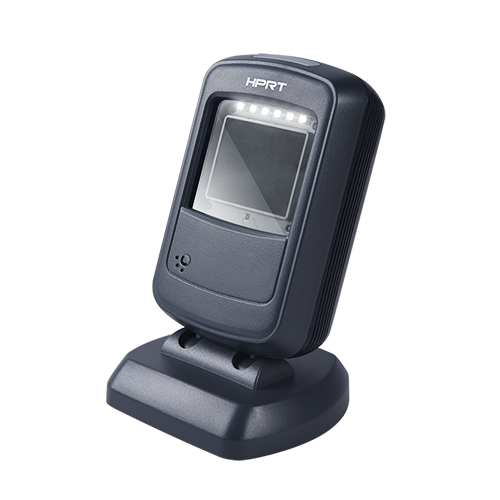
2D Stationary Barcode Scanners
Designed for hands-free counter scanning, self-checkout payment, and voucher/coupon code verification.
- ● Fast reading of 1D and 2D barcodes including digital payment QR codes
- ● Easy scanning from product labels, tickets, cards, and mobile screens
- ● Suitable for retail checkout, libraries, ticketing, reception desks, and pharmacy counters
Recommended Models:

PDA Barcode Scanners

Made for mobile data collection.
- ● Barcode scanning, display, and data entry in one device
- ● Wireless connectivity for mobile workflows
- ● Suitable for warehouse inventory, logistics delivery, field service, asset tracking, and healthcare data collection
Recommended Models:


Embedded Barcode Scanners
Built for system integration and automated scanning.
- ● Compact scanning modules for equipment integration
- ● Stable barcode reading in self-service or automated workflows
- ● Suitable for kiosks, vending machines, access control, and medical devices
Recommended Models:

Explore HPRT barcode scanners to find the right solution for your retail, warehouse, logistics, healthcare, or automation workflow.
Frequently Asked Questions
Do barcode scanners need special software?
Not always. Many scanners in HID or keyboard wedge mode can input barcode data into text fields, spreadsheets, POS screens, or web forms without special software. More advanced workflows may need POS, inventory, ERP, or configuration software.
Can I use a barcode scanner like a keyboard?
Yes. In HID keyboard mode, many barcode scanners send decoded barcode data to the active cursor position, similar to typing with a keyboard.
How do I connect a barcode scanner to a computer?
For a USB scanner, plug it into the computer—it's usually plug-and-play. Test it in a text field. For Bluetooth, scan the pairing barcode, then pair it in your system's Bluetooth settings.
Why does my scanner beep but no data appears?
The cursor may not be in an active input field, or the scanner may be in the wrong communication mode. First test the scanner in Notepad, Excel, or another simple text field.
How do I make a barcode scanner press Enter after each scan?
Enable an Enter suffix in the scanner settings. This is usually done by scanning a configuration barcode from the scanner manual or using the manufacturer’s configuration software.